Table of contents
Introduction
An inventory system is a feature as crucial as walking in RPGs, so without further adieu let's get into the intricacies of making one.
The full example is located on GitHub.
The plan & goal
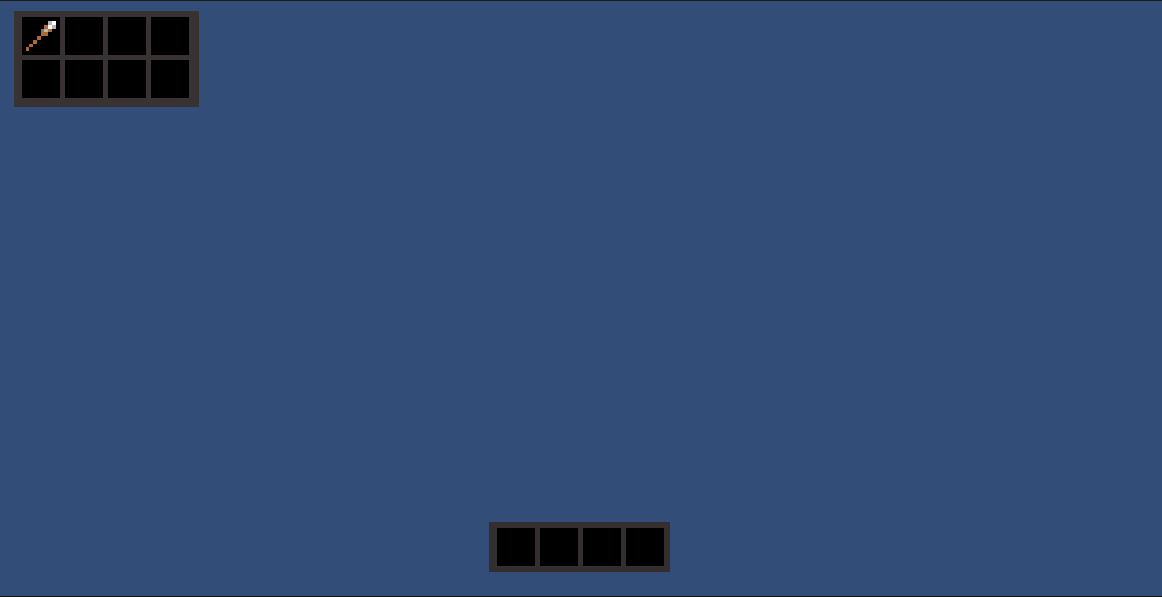
The inventory system we are trying to recreate here is comparable to a mix between Minecraft & Terraria since it features a hotbar in the middle which scales with the game window and a variable amount of slots on the top left which will be toggleable.
On top of being able to swap and move the items, we will also be making a tooltip system.
The sprites used here are (mostly) self made and the following sprite sheet is used for the tutorial (upsized, the original sized image is here):


Every item is 8x8 pixels, open your sprite editor inside unity and slice the sprite sheet in a 8x8 grid.
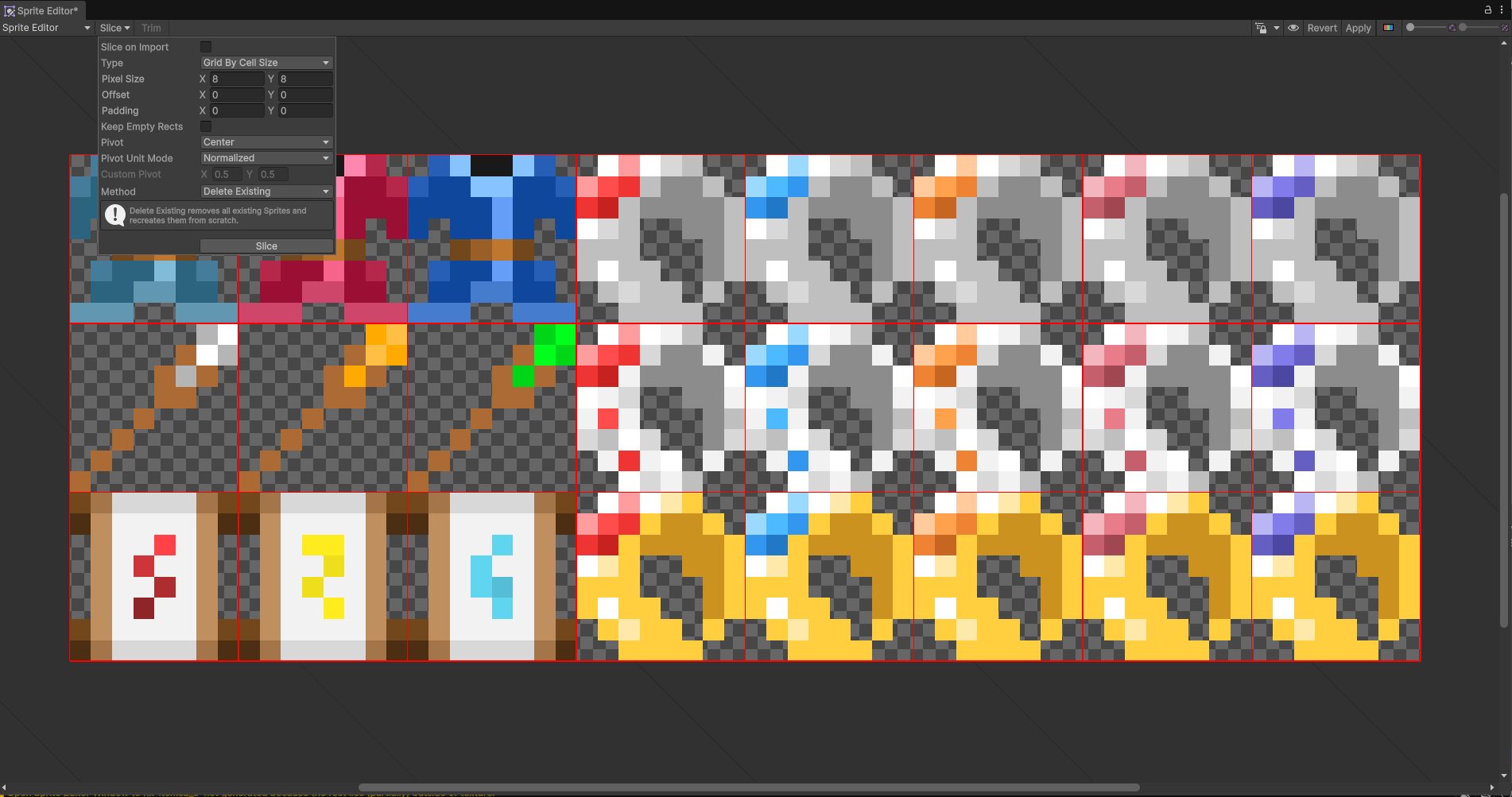
Without assigning the names of the resulting sliced sprites, they should automatically be named after the file they were created from, e.g. armorAndWeapons.png -> armorAndWeapons_0, armorAndWeapons_1 etc.
IMPORTANT TO NOTE: Place the file inside your Resources folder, explained later.
Item models
Before we get into the inventory itself we need to define our item models and the database and spawner that is going to accomodate them.
To persist and load the items you could write them in Unity itself with a serializable object, but for the sake of simplicity I will be using a JSON file and a parser that turns the JSON objects into real C# models.
The basic properties of the item will be as follows:
id - Used to identify the item and spawn it later
name - Self descriptive
description - Self descriptive
spritePath - A path to the image to display the item
tag - An enumeration from 1 to 4 (item slot type: weapon, armor, ring etc.)
rarity - An enumeration from 1 to 5
You might also need to define some additional properties according to your game setup.
A sample JSON file I will be using:
{
  "items": [{
    "id": 1,
    "name": "Iron ring of attack",
    "description": "A basic ring made of iron, an amethyst is embedded into it.",
    "tag": 1,
    "spritePath": "armorAndWeapons_8",
    "rarity": 1
  }]
}
Name the file Items.json and place it inside of your Resources\Misc\ folder.
The C# model is declared accordingly:
public class Item : ScriptableObject
{
    public int id;
    public Constants.ItemRarity rarity;
    public string name;
    public string description;
    public Constants.ItemTag tag;
    public Sprite sprite;
}
And the constants:
namespace Constants
{
    public enum ItemRarity
    {
        Common = 1,
        Uncommon = 2,
        Rare = 3,
        Epic = 4,
        Legendary = 5
    }

    public enum ItemTag
    {
        None = 1,
        Weapon = 2,
        Ability = 3,
        Armor = 4,
        Accessory = 5,
        Misc = 6,
        Consumable = 7
    }
}
The database
Next up we'll be making a Database object that will try and search up the items we loaded from the JSON file and will also preload all the items into concrete C# objects that can be indexed later.
public class Database : MonoBehaviour
{
  public static Database Singleton;
  private DatabaseItemList _databaseItemList;

  private void Awake()
  {
    Singleton = this;
    _loadItems();
  }

  public Item GetItem(int id)
  {
    var databaseItem = _databaseItemList.items.FirstOrDefault(x => x.id == id);

    if (databaseItem is null) return null;

    var item = ScriptableObject.CreateInstance<Item>();

    item.id = databaseItem.id;
    item.name = databaseItem.name;
    item.description = databaseItem.description;
    item.tag = (Constants.ItemTag)databaseItem.tag;
    item.sprite = ResourceCacher.Singleton.ArmorAndWeaponSprites.First(x => x.name == databaseItem.spritePath);
    item.rarity = (Constants.ItemRarity)databaseItem.rarity;

    return item;
  }

  private void _loadItems()
  {
    var jsonFile = Resources.Load<TextAsset>("Misc/Items");

    if (!jsonFile)
    {
      Debug.LogError("Item JSON not found!");
      return;
    }

    _databaseItemList = JsonUtility.FromJson<DatabaseItemList>(jsonFile.text);
  }
}
To make ease it easier to access, the database will be declared as a Singleton, in other words:
In object-oriented programming, the singleton pattern is a software design pattern that restricts the instantiation of a class to a singular instance
In order to load the items from the JSON we also need two proprietary models to accomodate the data structure of the JSON file:
[System.Serializable]
public class DatabaseItem
{
    public int id;
    public string name;
    public string description;
    public string spritePath;
    public int tag;
    public int rarity;
}

[System.Serializable]
public class DatabaseItemList
{
    public List<DatabaseItem> items;
}
Resource cacher
In addition to this, we need a system to load in the sprites. For this purpose I have declared a ResourceCacher class:
using UnityEngine;

public class ResourceCacher : MonoBehaviour
{
    public static ResourceCacher Singleton;
    public Sprite[] ArmorAndWeaponSprites;

    private void Awake()
    {
        Singleton = this;
        ArmorAndWeaponSprites = Resources.LoadAll<Sprite>("Sprites/armorAndWeapons");
    }
}
This is also a Singleton. You can declare more variables to store different images here, depending on your needs, maybe you will need an additional variable for some different types of items in a separate sprite sheet (which might be more handy than having one huge sprite sheet).
It is important to note that to load the sprites, your spritesheet needs to be located in the Resources/ folder in the root of your project!
To see if the loading works, just attach the Database script to an Empty object in your Unity scene. Same goes for the ResourceCacher object.
The tutorial continues in Part 2.