Table of contents
Introduction
Continuing on from the last part of the tutorial where we set up our models and item loading, in this part we are going to be setting up the code for our UI elements and implementing some basic logic.
The full example is located on GitHub.
Layout
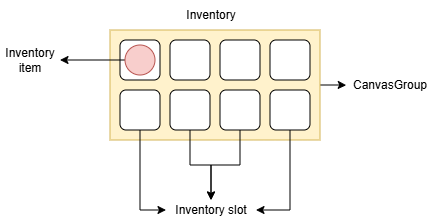
In the next part we will be setting up the actual UI elements, but this is the most straightforward view of the inventory system.
The Inventory object is the container for our desired amount of inventory slots, which can be arranged in any way you deem fit. An inventory slot will hold the inventory item object that stores additional information about what is in there - be it an empty space or an actual item that can be dragged.
Base object - the inventory
This object will be used as a container for the item slots and will do the spawning logic. I am not using a matrix or a 2d array for this purpose, but instead a UI-centric one-dimensional array of slot objects which will be assigned manually through the Unity UI editor.
using UnityEngine;

public class Inventory : MonoBehaviour
{
    [SerializeField] private InventorySlot[] inventorySlots;
    [SerializeField] public Transform draggablesTransform;
    [SerializeField] private InventoryItem itemPrefab;

    private void Start()
    {
        if (name == "Hotbar")
        {
            //
        }
        else if (name == "Inventory")
        {
            SpawnItem(Database.Singleton.GetItem(1));
        }
    }

    private void SpawnItem(Item item = null, int? index = null)
    {
        if (index != null)
        {
            var slot = inventorySlots[(int)index];
            if (slot.CurrentInventoryItem) return;
            var newItem = Instantiate(itemPrefab, slot.transform);
            newItem.Initialize(item, slot);
            return;
        }

        foreach (var slot in inventorySlots)
        {
            if (slot.CurrentInventoryItem) continue;
            var newItem = Instantiate(itemPrefab, slot.transform);
            newItem.Initialize(item, slot);
            break;
        }
    }
}
The key functions here are the default Start method that MonoBehaviour provides and SpawnItem.
The hotbar and inventory are basically the same thing, but the hotbar will only allow certain types of items in its slots. The way we can differ these two objects is with the built in name property which is set in the Unity editor.
You could also make another object that has the same code or inherits the Inventory class, but I find this a little easier.
The SpawnItem method is the bread and butter of the inventory system since it populates the item slots either by a direct index or by filling in the first empty slot.
We will also need to prepare an item prefab since this object will be instantiated a lot, but this step will be explained later.
Another thing to note is the draggablesTransform variable whose function will be to hold the position of the dragged item.
The inventory slot
This is where the majority of the moving, dragging and swapping logic happens. Pay attention to the IDropHandler interface being implemented here, this is what allows us to detect if something was dragged and dropped over that particular object in the UI.
using UnityEngine;
using UnityEngine.EventSystems;
using UnityEngine.UI;

public class InventorySlot : MonoBehaviour, IDropHandler
{
    public InventoryItem CurrentInventoryItem { get; set; }
    public Constants.ItemTag Tag;

    private Image _image;

    private void Awake()
    {
        _image = GetComponent<Image>();
        _image.raycastTarget = true;
    }

    public void OnDrop(PointerEventData eventData)
    {
        var droppedItem = eventData.pointerDrag?.GetComponent<InventoryItem>();
        if (droppedItem is null) return;

        if (Tag != Constants.ItemTag.None && droppedItem.ItemInSlot.tag != Tag)
        {
            return;
        }

        var fromSlot = droppedItem.ActiveSlot;
        var toSlot = this;

        if (toSlot.CurrentInventoryItem is null)
        {
            MoveItem(droppedItem, toSlot);
            return;
        }

        SwapItems(fromSlot, toSlot);
    }

    private static void MoveItem(InventoryItem item, InventorySlot targetSlot)
    {
        if (item.ActiveSlot) item.ActiveSlot.CurrentInventoryItem = null;

        item.ActiveSlot = targetSlot;
        targetSlot.CurrentInventoryItem = item;

        item.transform.SetParent(targetSlot.transform, false);
        ((RectTransform)item.transform).anchoredPosition = Vector2.zero;
    }

    private static void SwapItems(InventorySlot slotA, InventorySlot slotB)
    {
        (slotA.CurrentInventoryItem, slotB.CurrentInventoryItem) = (slotB.CurrentInventoryItem, slotA.CurrentInventoryItem);

        if (slotA.CurrentInventoryItem != null)
        {
            slotA.CurrentInventoryItem.ActiveSlot = slotA;
            slotA.CurrentInventoryItem.transform.SetParent(slotA.transform, false);
            ((RectTransform)slotA.CurrentInventoryItem.transform).anchoredPosition = Vector2.zero;
        }

        if (slotB.CurrentInventoryItem == null) return;

        slotB.CurrentInventoryItem.ActiveSlot = slotB;
        slotB.CurrentInventoryItem.transform.SetParent(slotB.transform, false);
        ((RectTransform)slotB.CurrentInventoryItem.transform).anchoredPosition = Vector2.zero;
    }
}
Some additional properties being defined here are Image and Tag. The Image is used for displaying a small black box for our item slot (or anything else you deem fit) and Tag will prevent the wrong items in the slot. The Tag is defined in the Unity editor through the property menu since it's public.
The functions here are simple - if it's an empty slot that is occupied by nothing at the moment just move the item and if not swap it by switching the inventory item around.
The inventory item
This object will represent the stored item inside of the item slot and will also react to the user pointer and dragging actions.
using UnityEngine;
using UnityEngine.EventSystems;
using UnityEngine.InputSystem;
using UnityEngine.UI;

public class InventoryItem : MonoBehaviour, IBeginDragHandler, IDragHandler, IEndDragHandler
{
    private Image _itemIcon;
    private RectTransform _rectTransform;
    private CanvasGroup _canvasGroup;

    public Item ItemInSlot { get; private set; }
    public InventorySlot ActiveSlot { get; set; }
    private Inventory _owner;

    private void Awake()
    {
        _canvasGroup = GetComponent<CanvasGroup>();
        _itemIcon = GetComponent<Image>();
        _itemIcon.raycastTarget = true;
        _rectTransform = GetComponent<RectTransform>();
        _owner = GetComponentInParent<Inventory>();
    }

    public void Initialize(Item item, InventorySlot parent)
    {
        parent.CurrentInventoryItem = this;
        ActiveSlot = parent;
        ItemInSlot = item;
        _itemIcon.sprite = item.sprite;
    }

    public void OnBeginDrag(PointerEventData eventData)
    {
        transform.SetParent(_owner.draggablesTransform);
        _canvasGroup.blocksRaycasts = false;
        _itemIcon.raycastTarget = false;
    }

    public void OnDrag(PointerEventData eventData)
    {
        _rectTransform.position = Mouse.current.position.ReadValue();
        if (transform.parent != _owner.draggablesTransform)
        {
            transform.SetParent(_owner.draggablesTransform);
        }
    }

    public void OnEndDrag(PointerEventData eventData)
    {
        _canvasGroup.blocksRaycasts = true;
        _itemIcon.raycastTarget = true;
        transform.SetParent(ActiveSlot.transform, false);
        ((RectTransform)transform).anchoredPosition = Vector2.zero;
    }
}
Note the use of raycast blocking, we need to disable and reenable this property to allow the user to actually drag the item in the UI.
CanvasGroup is another UI element that will be used in the next part of the tutorial, mostly for the layout of the items.
In this class we also have the Initialize method which is self explanatory, but will be used to set up the appropriate slot and item as well as the sprite.
OnBeginDrag is a method implemented through the IBeginDragHandler interface and will set the parent of the item in the UI to the draggablesTransform object of the inventory whose only purpose is to carry these items around - we'll get around to this when making the UI.
The tutorial continues in Part 3!